Contents:
Programmer Reference:
- API INDEX
- pycatia
- base_interfaces
- drafting_interfaces
- enumeration
- exception_handling
- hybrid_shape_interfaces
- in_interfaces
- knowledge_interfaces
- mec_mod_interfaces
- navigator_interfaces
- part_interfaces
- product_structure_interfaces
- scripts
- sketcher_interfaces
- space_analyses_interfaces
- system_interfaces
- workbenches
Installation
The Short Version
This assumes python 3.6 or later is already installed and you know how and when (all the time really) to use virtual environments.
To install from pypi:
pip install pycatia
To get the latest development version from github:
   git clone https://github.com/evereux/pycatia.git
   # install pycatia requirement
   pip install -r requirements\requirements.txt

To upgrade your current installed version::

   pip install pycatia --upgrade
The Long Version
It’s unlikely that the pycatia end user will have administrator access to their workstation. If that is the case you’ll need to get someone with the appropriate permissions to install python and the virtualenv module.
Installing Python
Download python 3 (3.6 or later) from python.org.
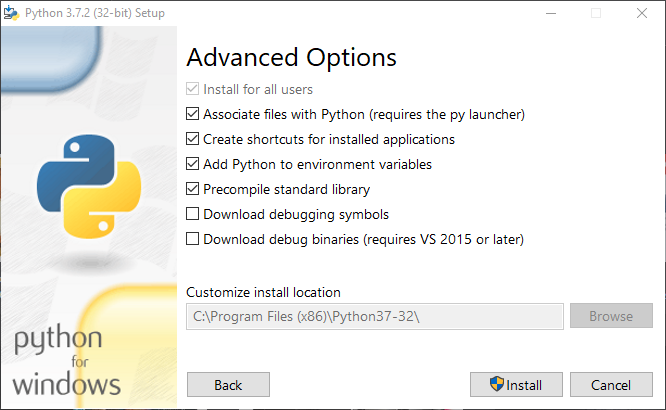
Install python. Ensure to check the box to add python to environment variables.
Install virtualenv for python. From the adminsitrator command prompt run the following:
python -m pip install virtualenv
Create The Virtual Environment
The virtual environment allows you to install python packages in a sand boxed environment away from the python installation itself.
Create a new directory where you’ll be creating your pycatia scripts. For this example this will be c:\Users\<username>\python\pycatia-scripts
Change directory into this folder:
cd c:\Users\<username>\python\pycatia-scripts
Create the virtual environment:
python -m virtualenv env
Activate the virtual environment:
env\Scripts\Activate
You should see the command prompt change to something like this:
(env) c:\Users\<username>\python\pycatia-scripts>
Install pycatia:
python -m pip install pycatia
All done!
Note
pycatia scripts will need this virtual env activated prior to running.
Confirm Successful Install
Warning
Starting the CATIA V5 session is important!
Start a CATIA V5 session.
Open the CMD prompt and activate the virtual environment if you haven’t already done so.
Type python. You will then enter the python interpreter.
(env) C:\Users\<username>\python\pycatia-scripts>python
Python 3.6.7 (v3.6.7:6ec5cf24b7, Oct 20 2018, 13:35:33) [MSC v.1900 64 bit (AMD64)] on win32
Type "help", "copyright", "credits" or "license" for more information.
Now import the catia application object.
from pycatia import catia
help(catia)
# q to quit help
# open a new .CATPart
documents = catia.documents
documents.add('Part')
To exit the python interpreter.
exit()
Warning
If there are no error messages and you don’t see a new CATPart ensure you don’t have any hidden CATIA / CNEXT processes running in task manager.
Warning
Sometimes the COM object isn’t registered properly when CATIA is installed. If the above isn’t working you may need to re-install.